AI Image Generator for Your Ideas
Create product photos, portraits, and illustrations from text or a reference image. Use image-to-image editing to explore new backgrounds and styles while keeping your subject recognizable.
Generate images, videos, voiceovers, 3D models, and more from your ideas.
0 / 5000
Explore a look you like, then use its prompt as a starting point.
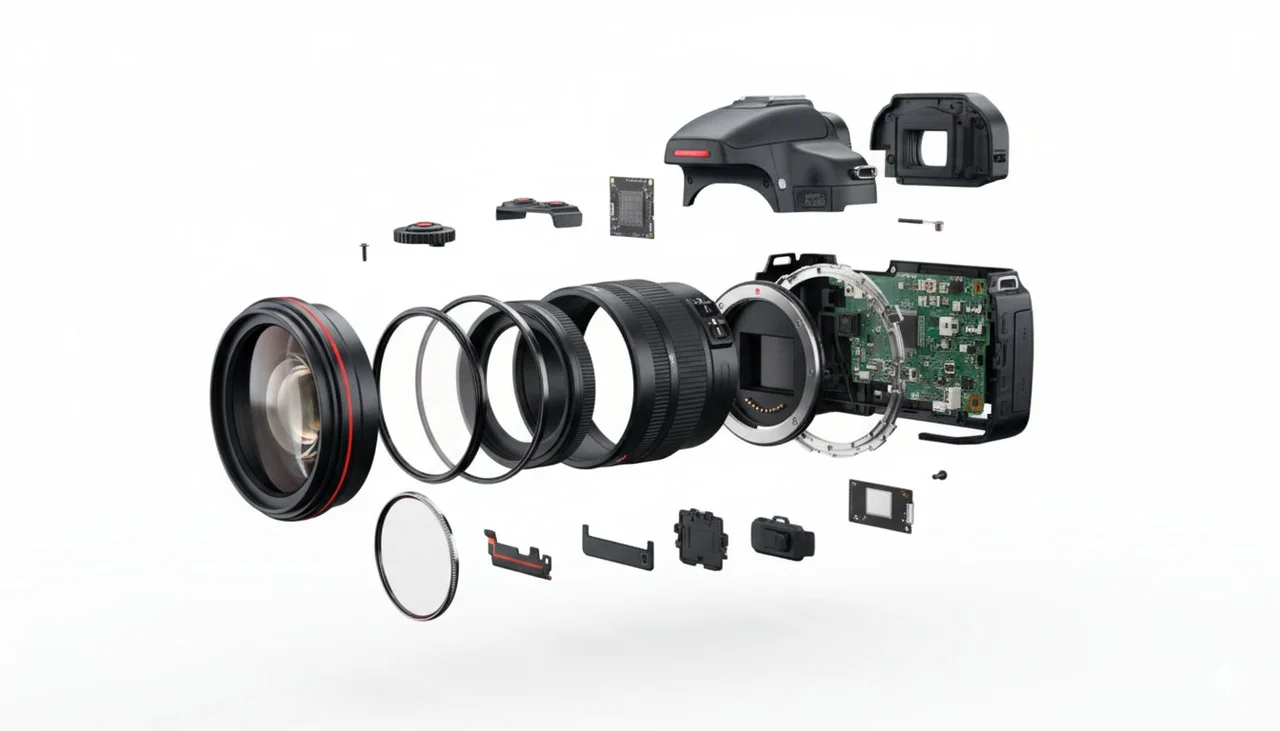
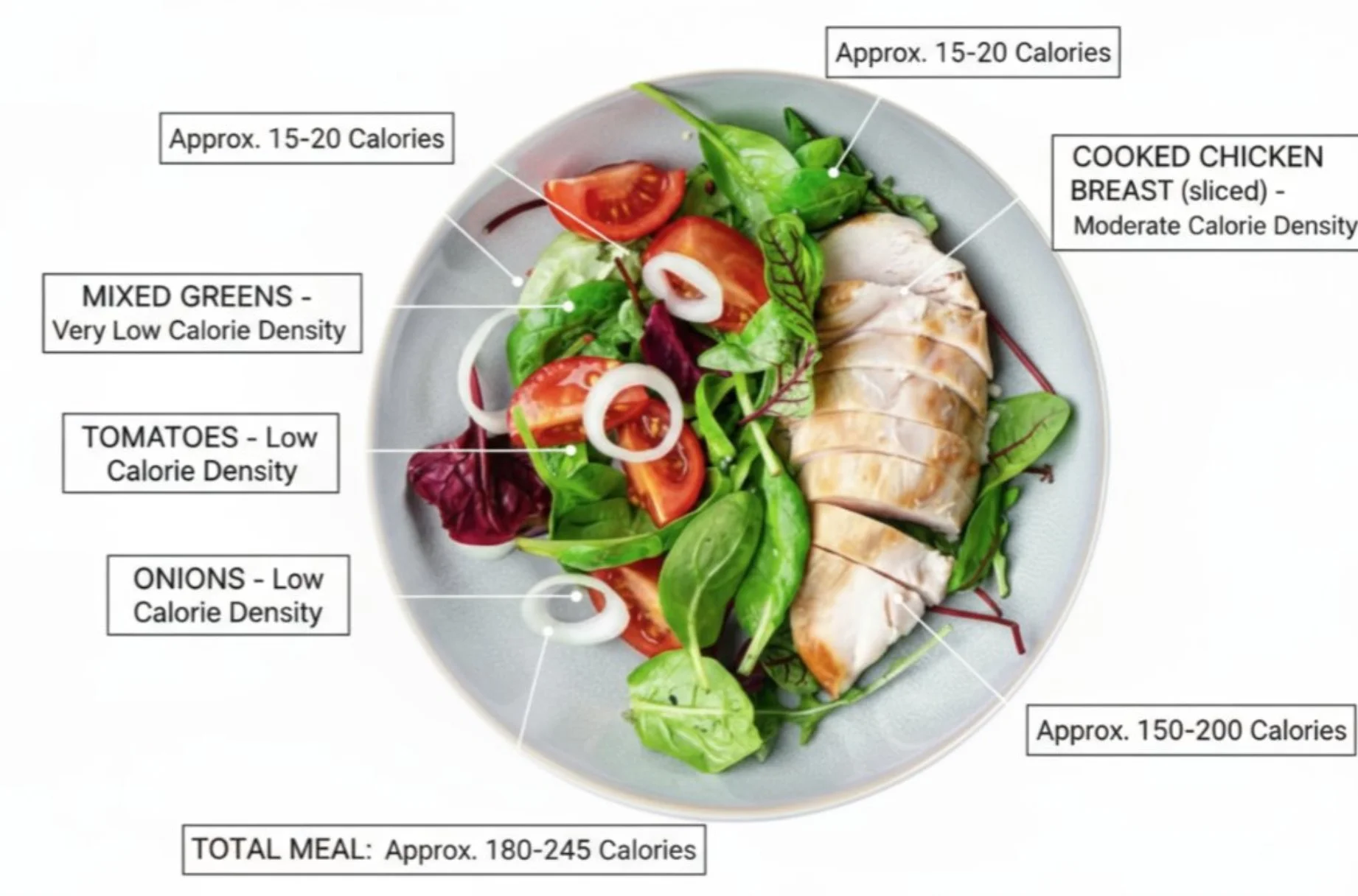
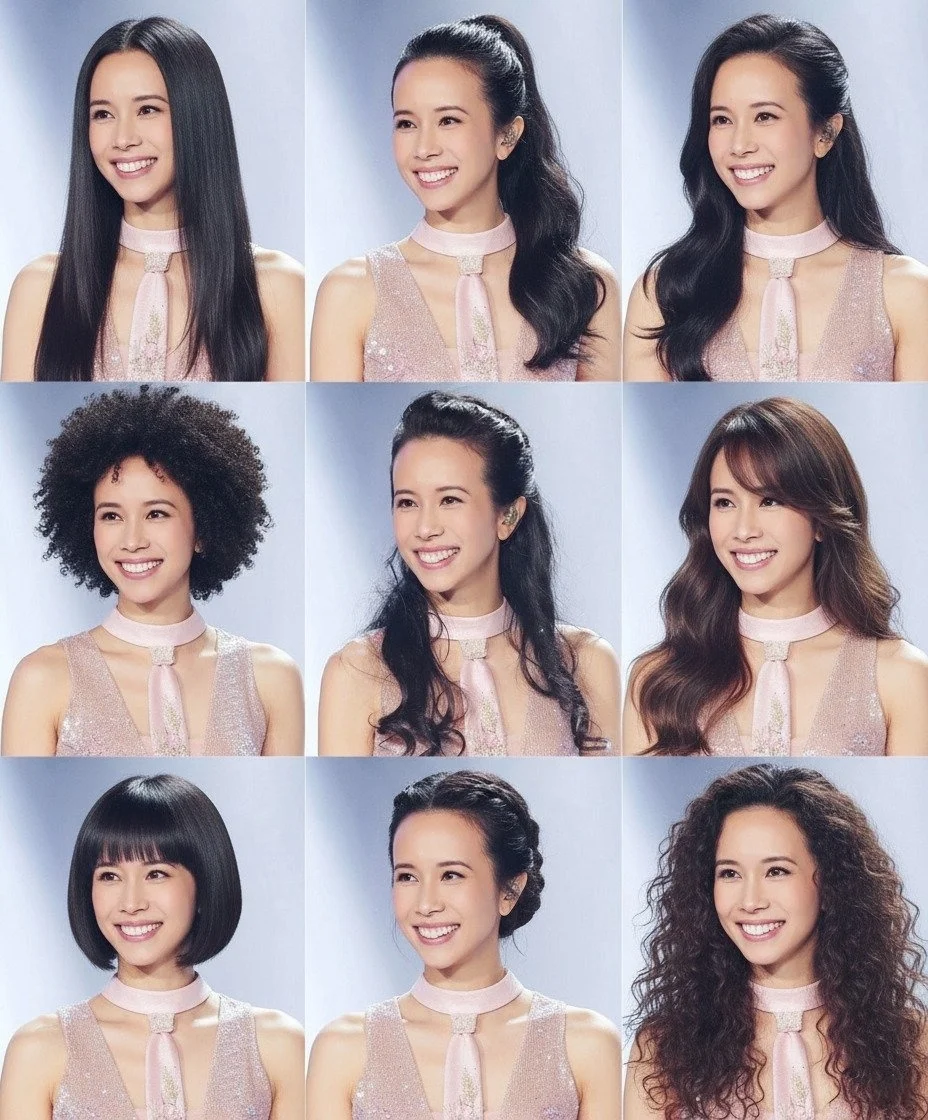
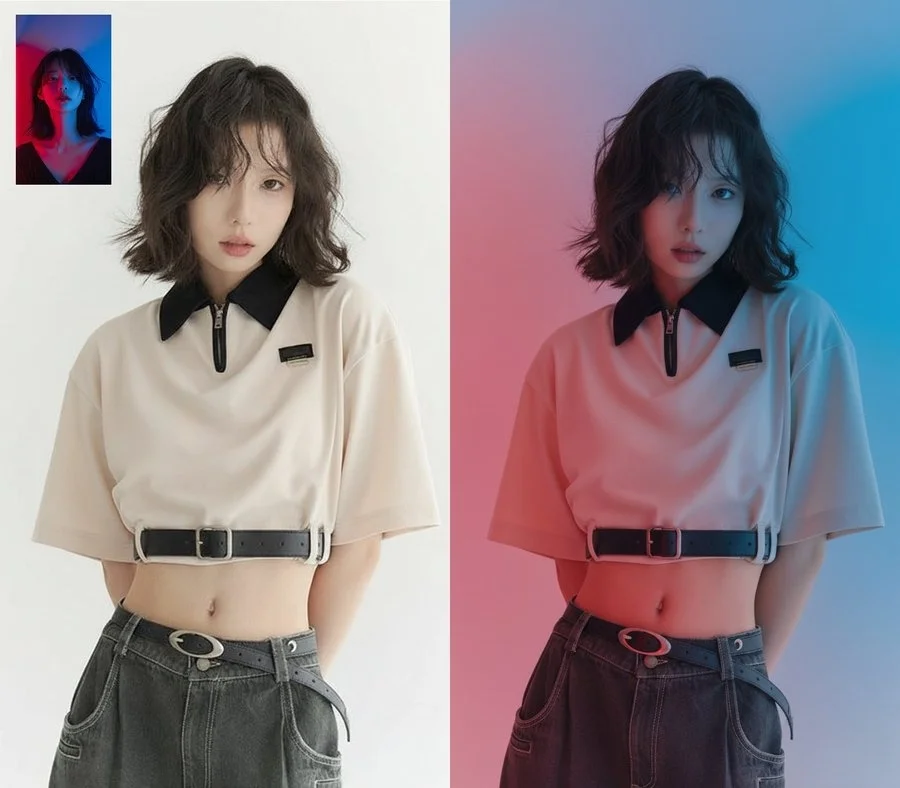
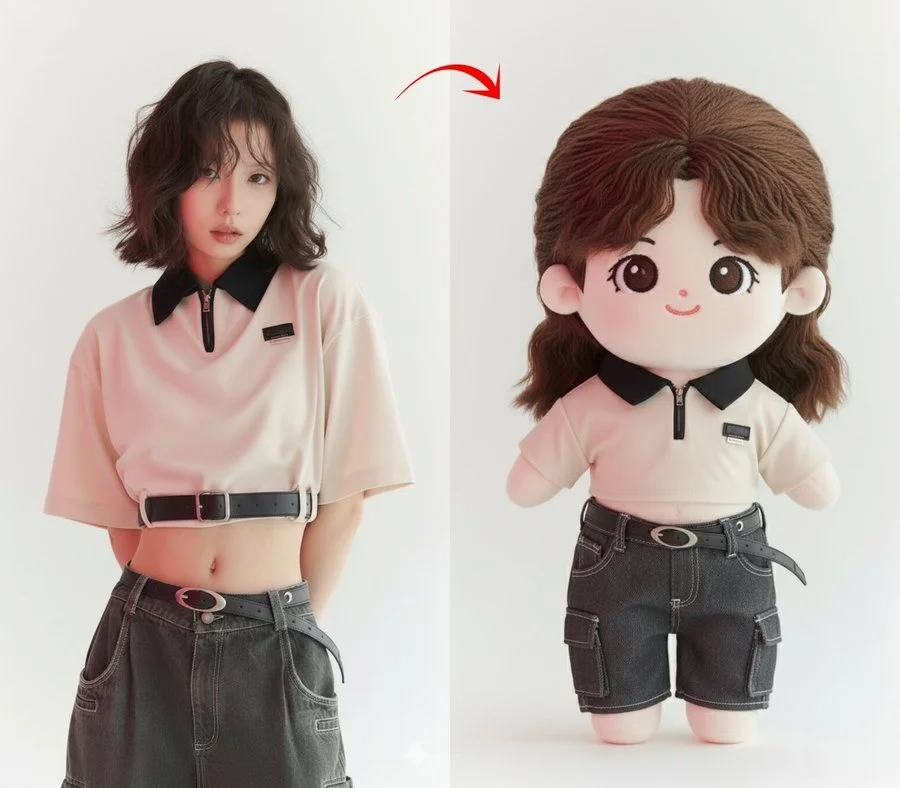


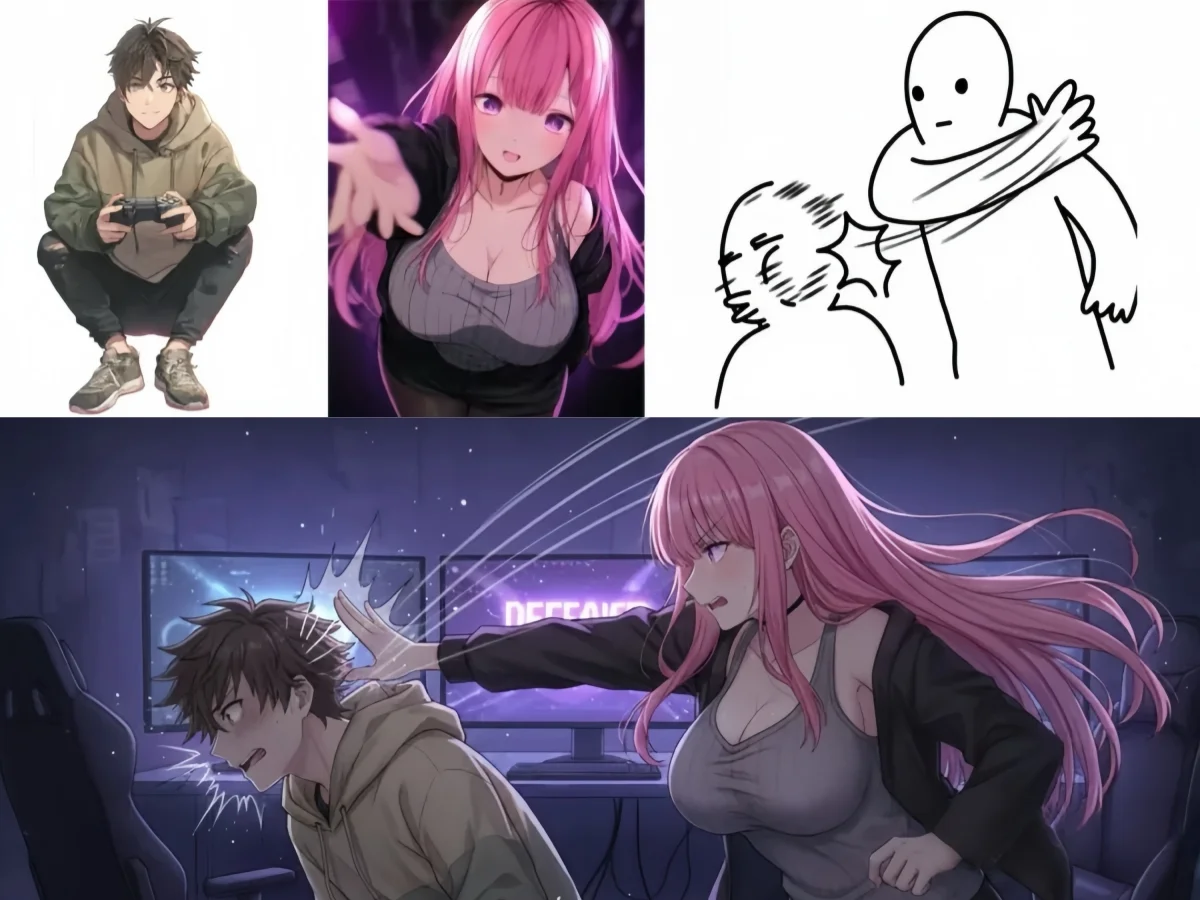
Magnific AI brings AI tools for images, video, voice, and 3D into one creative platform. Generate images from text or photos, edit and upscale your favorites, and create visuals for products, stories, and social posts.
Create product photos, portraits, and illustrations from text or a reference image. Use image-to-image editing to explore new backgrounds and styles while keeping your subject recognizable.
Animate a photo or imagine a scene from scratch. Set the subject in motion, add camera direction, and explore how the scene unfolds.
Turn a script into spoken audio for a narration, a character, or a conversation. Choose voices and shape the delivery to suit the message.
Generate a model from text or reference images. Rotate it in the preview, inspect its shape, and download it for further work in your 3D software.
Choose the tool for the change you need: a new composition, a larger image, a clean cutout, or another view.
Use image to image to change a setting, adjust a style, or develop a variation from a reference. Describe the change you want and the details you want to keep.
Use the image upscaler to enlarge a selected picture for a full-width banner, presentation, or closer crop. Choose 2× or 4× to give your finished image the dimensions your layout needs.
Remove the background from a product photo, portrait, or illustration to create a cutout you can place in another design.
Create a sticker, object, or illustration from text, or remake a reference with transparency. Download a PNG to place the asset over a colored background or another image.
Generate different shots from one reference image. Compare close-ups, wider framing, and alternate views, then save individual frames or upscale your favorites.
A written scene, a reference performance, and a spoken script call for different tools. Start with the input that gives you the control you need.
Use the AI video generator for a scene imagined in words or a still image you want to animate. Include an action and camera direction in your prompt.
Use motion control when you already have a performance to follow. Provide a character image and reference video to guide the movement.
Pair a portrait with an audio track to make a talking avatar. Use your own recording or create the spoken track with text to speech first.
Use Magnific AI to develop a product presentation, give a character a voice, or explore the shape of a new prop.
Create a clean studio shot or place your product in a lifestyle setting. Use a reference to guide its shape, colors, and label, then describe the lighting and composition for a product listing or social post.
Hear how a script sounds before adding it to a video. Assign voices to speakers and refine the delivery for a tutorial, character exchange, or spoken introduction.
Explore the volume and silhouette of a character or prop beyond a flat drawing. Generate a first model from a reference, inspect the hidden sides, and download it to develop in your 3D software.
Answers to help you choose a tool and start creating.
You can make product visuals, illustrations, animated clips, narrated content, talking avatars, and 3D characters or props. Magnific also provides tools for preparing existing assets, such as enlarging a photo or turning a subject into a cutout.
Yes. Create free AI images and videos with Magnific AI. Start with a written idea or a reference image to make product visuals, illustrations, or animated scenes for your project.
Yes. Upload a photo or illustration in the tool you want to use. For image editing, pair it with instructions about what should change. For a talking avatar, add an audio track; for motion control, add a reference video.
Image editing changes the content or appearance of a picture, such as its setting, style, or objects. Upscaling makes an existing picture larger. Use editing to create a different version and the 2× or 4× upscaler to increase its dimensions.
Yes, using different tools. Image to video animates a still image according to your prompt. Motion control uses a character image together with a reference video to guide the movement. Choose the first for a motion idea described in words and the second when you have an action to follow.
Yes. Text to speech turns your script into spoken audio, including dialogue with different speakers. The avatar tool combines a portrait with an audio track to create a talking video. You can use generated speech or upload your own recording.
Yes. Upload a clear image of your subject to the 3D model generator. Once the model is ready, rotate it to inspect the shape and surfaces that were not visible in your reference, then download it for further work in compatible 3D software.
Describe what you want to make or upload a reference. Give your idea its first image.
Start Free